
Recently one of my friend asked me how can a USB drive be disabled on a particular computer.So its a pretty much Registry Tweak.
To disable the access to USB port, in windows XP ,Vista and Windows 7:
1.Click Start, and then click Run.
2. Type regedit, and then click OK. (Or simply open registry)
3. Navigate to the following registry key:
HKEY_LOCAL_MACHINE\SYSTEM\CurrentControlSet\Services\UsbStor
4. In the right pane, double-click Start.
5. In the Value data box, change its value to 4,which was 3 and then click OK.
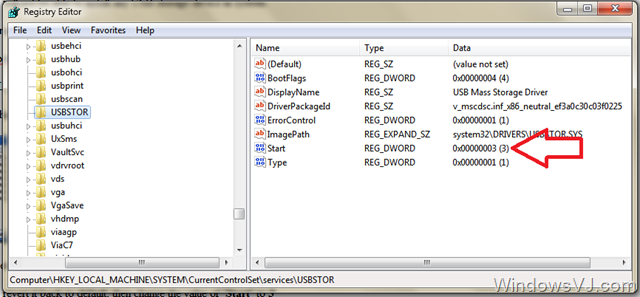
To re-enable a disabled port:
1. Click Start, and then click Run.
2. Type regedit, and then click OK. (Or simply open registry)
3. Navigate to the following registry key:
HKEY_LOCAL_MACHINE\SYSTEM\CurrentControlSet\Services\UsbStor
4. In the right pane, double-click Start.
5. In the Value data box, change its value to 3,which you changed to 4 to disable the USB drive and then click OK.
6. Quit Registry Editor.
Now whenever a user will attach a USB storage device which is already installed in system, Windows will not detect it and it’ll not be shown in My Computer. However, disabling USB ports totally also disables the ability for Windows to use USB based keyboard, mouse, webcam, printer, scanner and etc, which are common devices for a computer nowadays and essential ones as well.
Very useful Post for the peoples who dnt want oother to access their USB Ports.
V. Good
Thanks Samy….this was requested by a regular reader
Good Tip. It really helped one of my friend, who was looking for a similar information.
Cheers’
Vj