
Windows 7 has a feature through which we can find out exactly how much battery you are actually getting from your Laptop battery, i.e. its efficiency, maximum charge potential.
Its a well known fact that as the age of lithium battery increases its charging capacity decreases and it wont charge to its full potential as when it’s new. We can find out exactly how much the battery of laptop is giving now.We can use the powercfg -energy to find out how health your battery is.
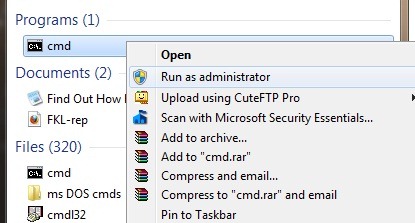
1. Open elevated command prompt by typing "cmd" in your start menu. & opening it with administrator privileges.
2. Type “powercfg –energy” into the command prompt & press Enter.
3. The command enables tracing for 60 seconds & would collect all the data after observing the system behavior.
4. After analysis it would generate a report.
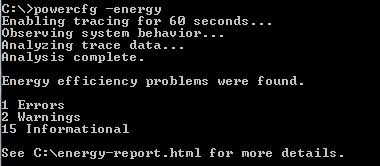
5. The energy report is generated in HTML format in the directory shown in the command prompt.
Cmd Prompt Address\energy-report.html by default.
6. In the HTML file , scroll to the end till you get information like this :
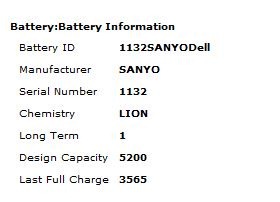
This shows the battery ID,Manufacturer name,Chemistry,Design capacity and most importantly the last full charge .
So as above screenshot my Dell Studio 15 battery has design capacity of 5200 and now its giving max full charge of 3565 that counts its efficiency to around 70% It has degraded around 30% in 6 months.
Tx to Windows7hacker for sharing this tip.
can we find out UPS backup in same way