

In Office 2010, one of new features is an on-the-fly translation feature called Mini Translator. The Mini Translator allows you to translate single words or many paragraphs simply by hovering over the text that you want to translate. Mini Translator also includes the ability to Speak that text using Microsoft’s Text-to-Speech (TTS) engine . Speak is enabled for Quick Access Toolbar and Customize Ribbon Options. Speak button can be added to either of these and quick access to Speak at any time can be made. Speak will recognize the language of the text you select and checks if you have that Text-to-Speech language, either from a built-in Windows TTS engine, 3rd party engine, or a TTS engine from the Download Center.
In Office 2010 "Speak" feature is present in Excel, OneNote, Outlook, PowerPoint, and Word. To enable it and add to tool bar or on the ribbon, follow the steps
1. Open a Word or other application from the Microsoft Office 2010 suite.

2. Navigate to Backstage menu by navigating to File > Options
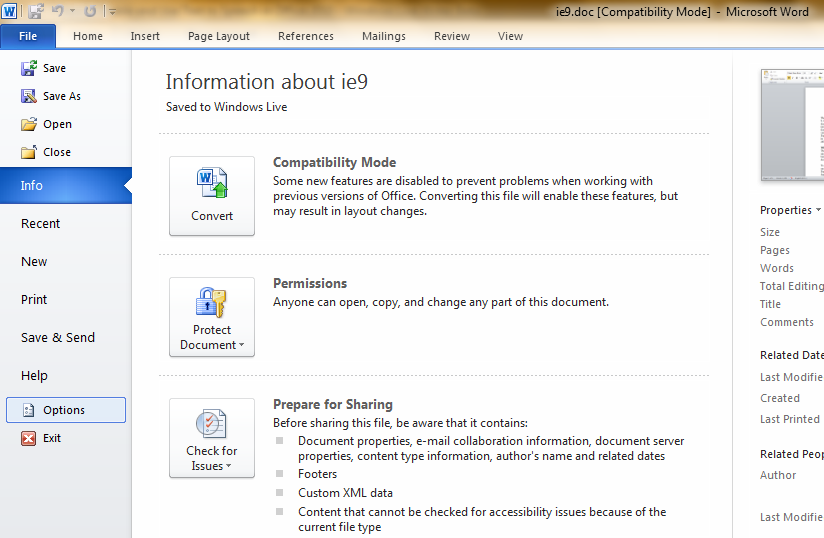
3. Options window will popup now, Select & click Quick Access Toolbar.
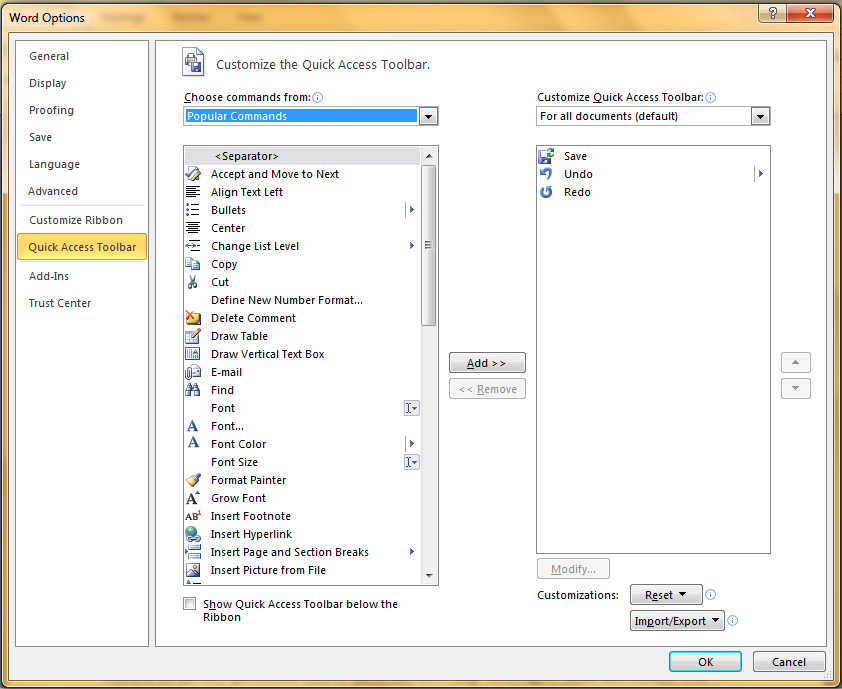
4. Choose Commands Not in the Ribbon option from the "Choose commands from" tab.
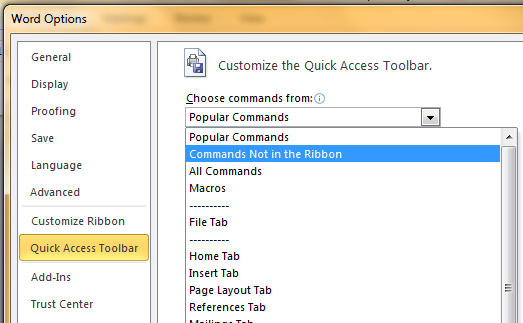
5. Select Speak in the scroll box after selecting Commands Not in the Ribbon from the drop down list. After selection of Speak click Add > OK. 
6. This will add the "Speak" button in the Title Bar.
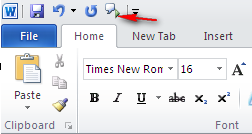
7. To add the speak button on the Ribbon, Go to Customize Ribbon in the options window. Again Select Commands Not in the Ribbon from the drop down list & Speak from the list in the scroll box.
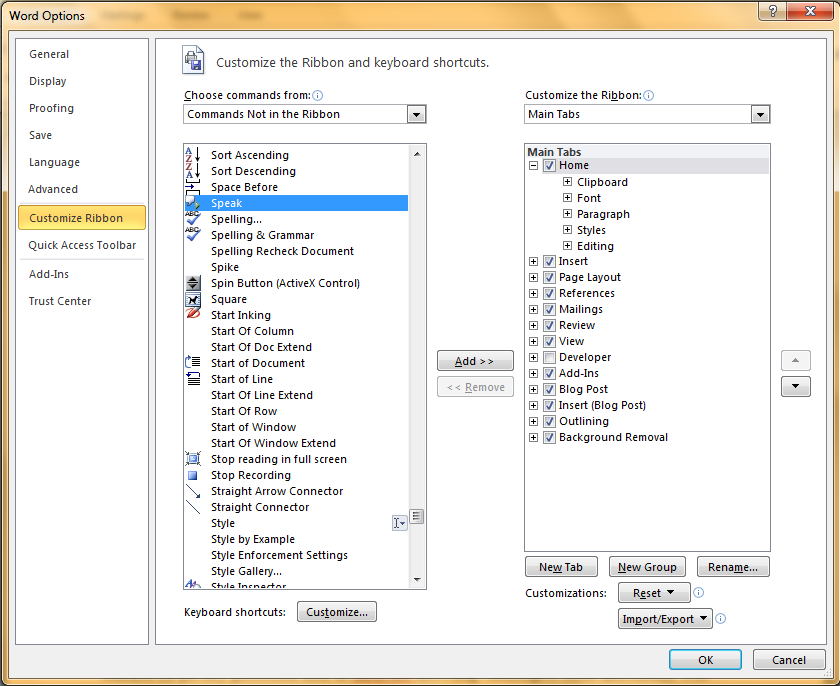
8. Either of "New Tab" or "New Group" button can be clicked as per requirement.
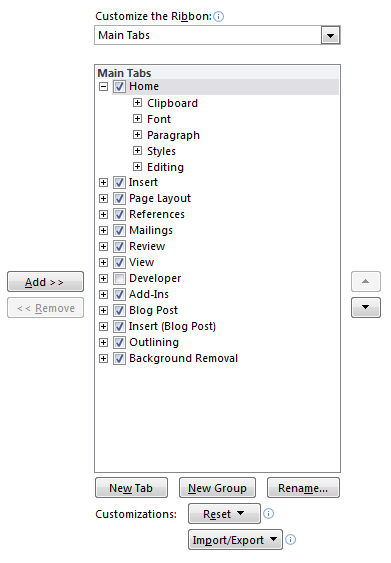
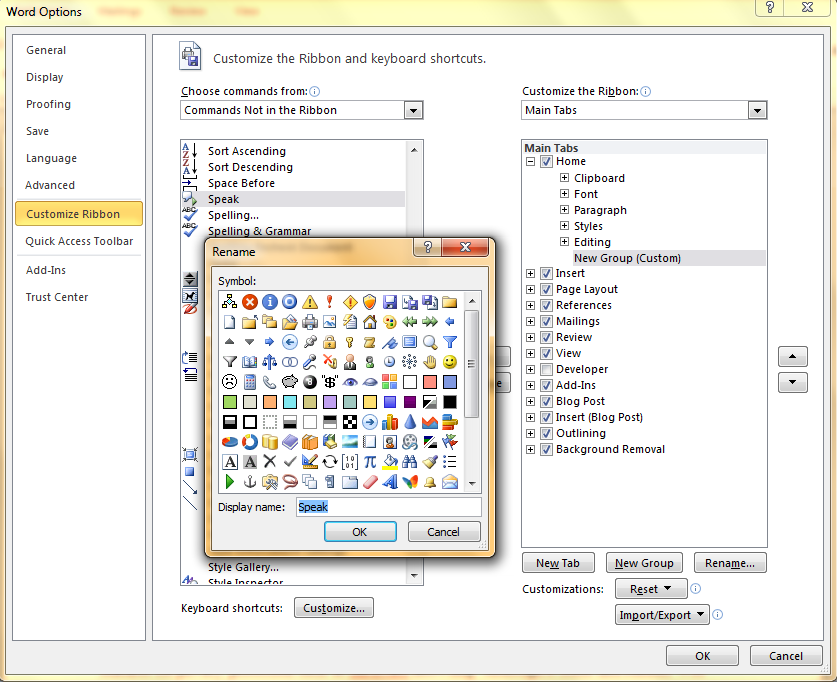
9. After selecting the new Tab or new Group (Selected here), the feature name to be appeared can be renamed and symbolized by an icon which can be selected from the icon list which pops up when Rename button is clicked.
10. From the Commands Not in the Ribbon tab, select Speak and Add it to ribbon by clicking Add followed by OK. 
11. Now a new button would be added in the Ribbon at the place selected in previous step. The speak feature button is added at the last of Ribbon under Home Tab.

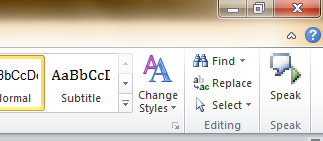
12. To use the text to speech feature , simply select the text and then click "Speak" button. And the text selected would be narrated by the Microsoft’s Text-to-Speech (TTS) engine .
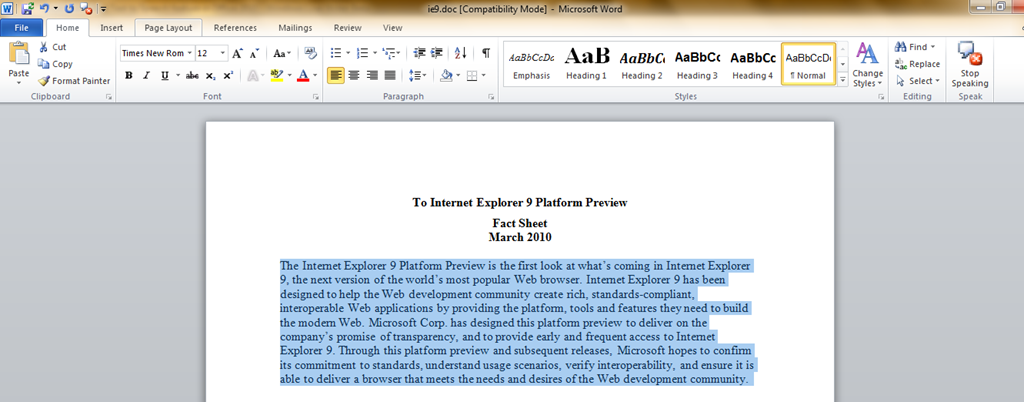
13. To stop or interrupt the Speech, click the ribbon button Stop Speaking which has been changed from Speak button after starting the speaking.

My experiences have been OK with this feature. It was not very clear but a recognizable speech. Microsoft need to improve the TTS engine more. Still the feature is impressive.
Great help…useful!
Brilliant, easy to follow instructions and it works
hi there how does one change the voice(if possible) and lastly how does one change the rate at which the person talks.
Thanks in advanced.