Balloon notifications can be annoying many a times.Good thing is they can be disabled easily in Windows 7. To disable balloon tips in the notification area, follow these Methods:
1. Using GPEdit (Group Policy Editor)
This setting turns off the Balloon notification in the notification area using Group Policy editor .
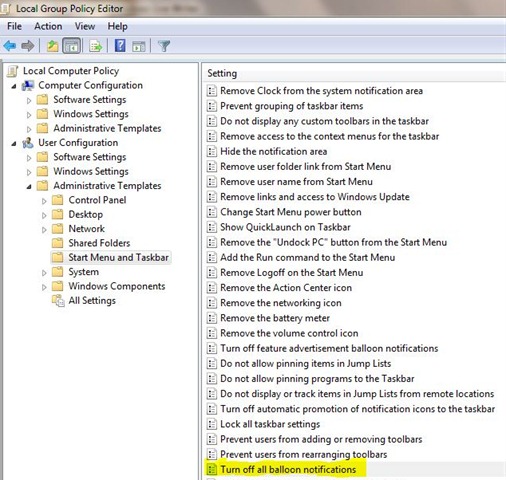
Open Run Dialogue Box (Win + R) and type gpedit.msc
Navigate to Local Computer policy > User Configuration > Administrative Templates > Start Menu & Taskbar in left hand side pane.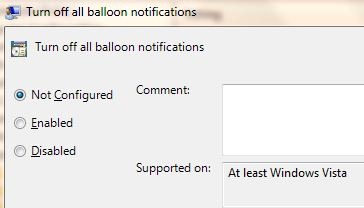
Select Turn off all Balloon notifications setting from right side pane.
Open it and enable it so that no notification balloons will be shown to the user. .
Press OK
2. Using RegEdit (Registry Editor)
Click Start, click Run, type regedit, and then press ENTER.
Navigate to the following subkey: HKEY_CURRENT_USER\Software\Microsoft\Windows\CurrentVersion\Explorer\Advanced
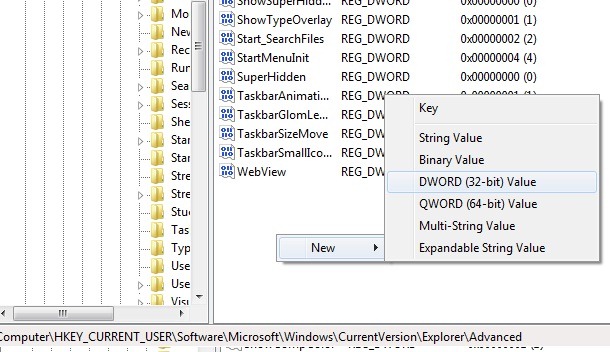
Right-click the right side pane, create a new DWORD value, and then name it EnableBalloonTips.
Double-click EnableBalloonTips, and then give it a value of 0.
Close Registry Editor.
Note: To make changes to this setting effective, you must log off and then log back on.