
Recycle bin from Windows 7 Desktop can easily be removed. Methods to remove Recycle Bin from Windows 7 Desktop :
1. Remove from Control Panel
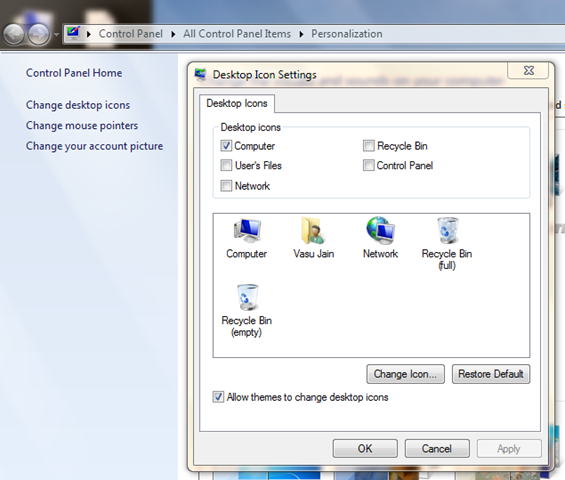
Navigate to following address : Control Panel > All control Panel Items > Personalization
On left side pane Click on Change Desktop Icons
This will popup Desktop Icon Settings
Uncheck Recycle Bin
Press Ok to Remove Recycle Bin with immediate effect.
2. Using GPEdit (Group Policy Editor)
This setting removes the Recycle Bin icon from the desktop, from Windows Explorer, from programs that use the Windows Explorer windows, and from the standard Open dialog box.
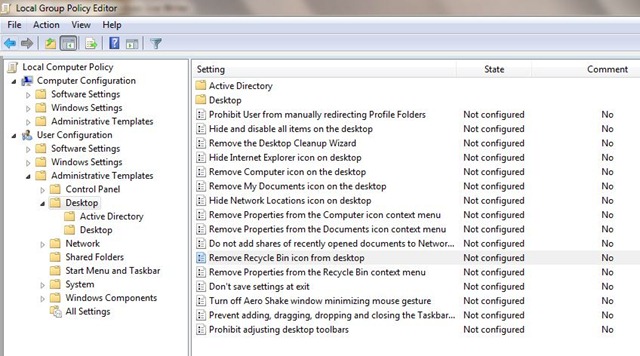
Open Run Dialogue Box (Win + R) and type gpedit.msc
Navigate to Local Computer policy > User Configuration > Administrative Templates > Desktop in left hand side pane.
Select Remove Recycle Bin policy icon from Desktop setting from right side pane.
Open it and enable it to Remove Recycle Bin.
Press OK
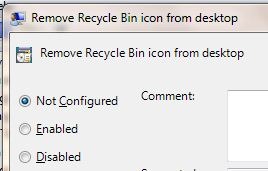
Note: To make changes to this setting effective, you must log off and then log back on.
Nice presentation … and nice blog 🙂
Thanks Sir for quoting here.Inspiration has been always you people @ MW,TWC although i m nt much involved @ TWC but still i chk it out quite often