
Office documents, presentations or spreadsheets being downloaded from Internet are open to any form of Macro viruses that may harm the system. Microsoft Office has always been susceptible to a variety of security threats, ranging from macro viruses to exploits of embedded vulnerabilities. Generally frequent updates, patches, and third-party security products was what used by Users and administrators to keep their systems safe from these open threats embedded in office documents, presentations or spreadsheets. Thus Microsoft has introduced a security measure “Protected View” in Office 2010.
Protected View, works by opening new documents from unknown sources or any file from Internet in a "digital sandbox" that prevents a user from editing the document or executing macros or other embedded features. Therefore a user can review the document without invoking any harmful or malicious attachment or code with the office document, the risk to the system is mitigated and the user may later decide whether they want to trust the document.
Protected View is one of the features in Office 2010 that has made the Office suite much secure. Since in a Protected View, file is a read only view, no changes can be made over the file . This feature was to only use in high risk scenarios where macros contains harmful scripts or malicious code. So if you want to disable read-only protected view in Office 2010, you can do the same.
1. Open a Word/ Excel file. (We would take an excel file in this scenario)
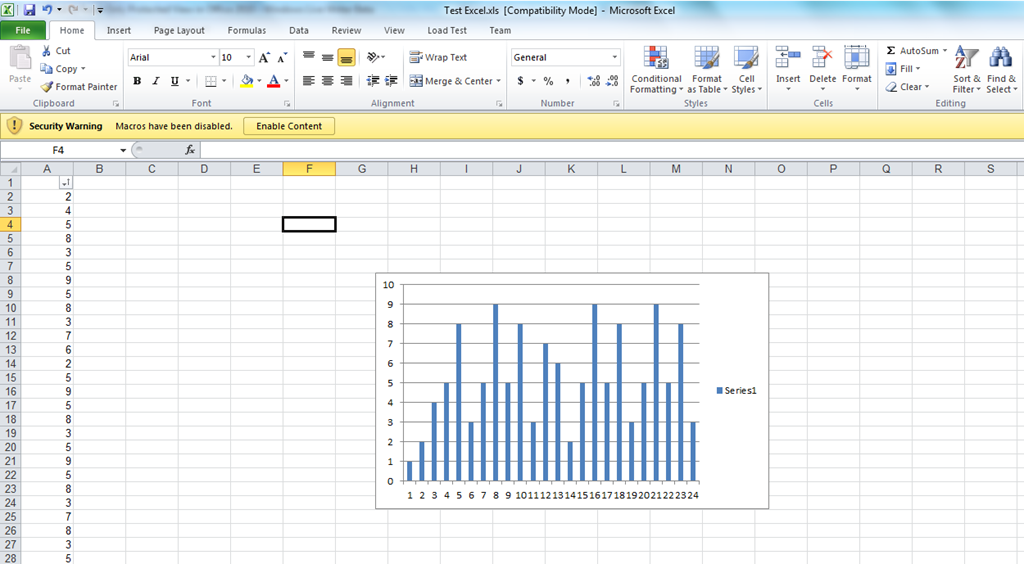
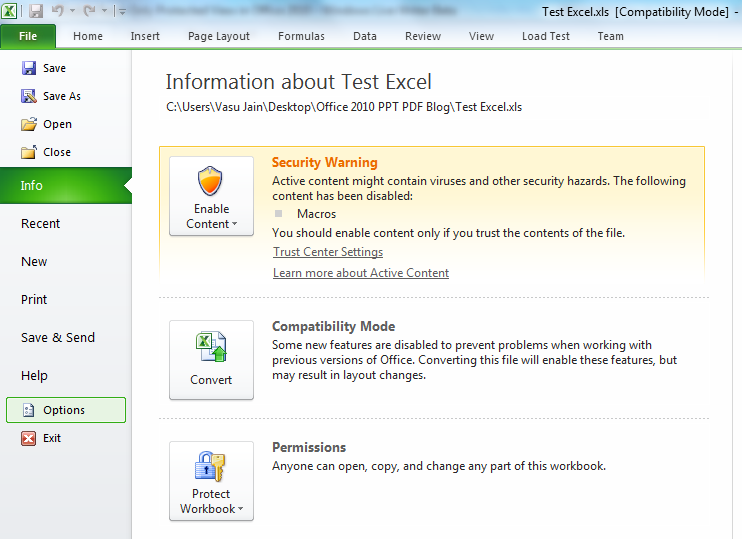
2. Launch Excel application. Navigate to "File" > "Options" in the menu.
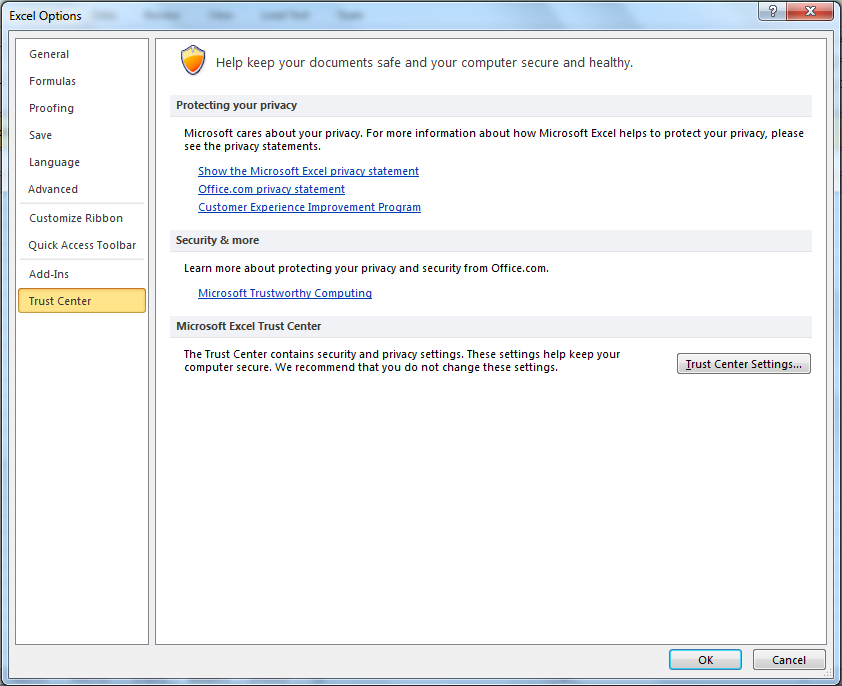
3. In "Excel Options" dialog box, select "Trust Center" from the left pane. Then click "Trust Center Settings".
4. Select "Protected View" option from the left side pane in "Trust Center" dialog box.
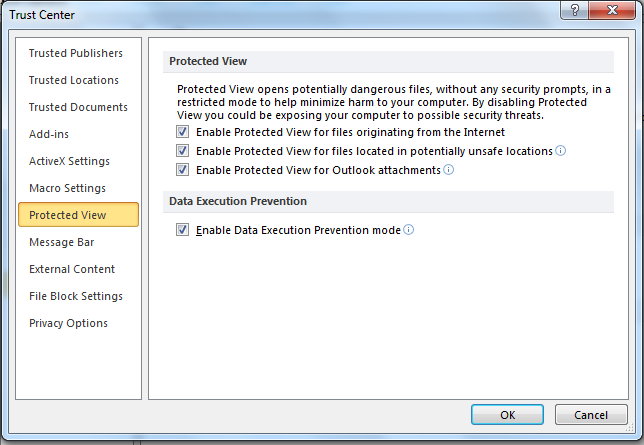
5. From the "Protected View" option, there are several options which are all checked, Disable all of the checkboxes and then click "OK" to save changes.
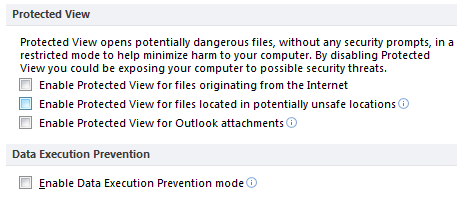
This triggers off the read-only protected view in Office 2010. To enable this feature, just check these options.
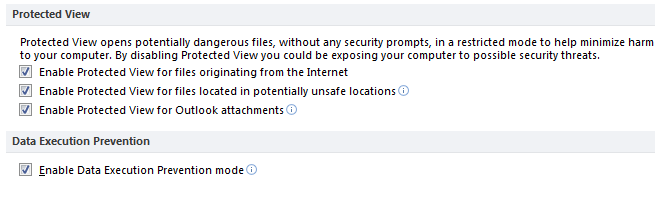
The above procedure disables the Protected view for Excel 2010 only. To disable the Protected view for each and every Office 2010 applications , such as, Word 2010, Excel 2010, PowerPoint 2010 and Outlook 2010 it need to be done individually for every application.
Hola he realizado la prueba haciendo paso a paso lo que aparece y me siguen saliendo los documentos en protected view. Alguien ha probado con alguna opcion diferente?
Spanish to English translation
Hi I made the test by step what appears and I keep getting the view protected documents. Has anyone tried with a different option?
Vasu
My computer is not saving the spreadsheets even after disabling the Protected view. It gives an error message about registry policy. Please assist.
Eliya
Pls post the screenshot or mail me the same.
Just upgraded from Office 2003 to 2010. ALL of my Excel documents that I created on another computer will only open in “Read-only” mode, even with all of the checkboxes off in the Protected View as described above. HELP!
Can you mail the screenshot.. vasu@windowsvj.com
I’m having an issue with “Protected Mode”. Were I will download a file and for the first time it will open in “Protected Mode” and I can “Enable Editing” and everything works fine. But every other time I try to open that same file from the internet it doesn’t open in “Protected Mode” and doesn’t give me the ribbon asking me to “Enable Editing”.
Why is this, how can I make it so that it opens and gives me the “Protected Mode” ribbon every time I open a file from the internet.
Note: on my other computer it always opens with the “Protected Mode” ribbon so I know that there is some setting that I have different between the two computers I just don’t know what it is.
I have done as instructed above but whenever I want to save changes to an xcell spreadsheet it tells me its a read only file and that i have to make a copy. I don’t want to make a new copy every time I make a change to to the sheet. How do i fix?
My sheets when reopened after first save,lose substantial functionality e.g. Sigma function becomes unavailable – as do most others also. I then applied this suggestion and reopened the sheets. On reopening, they initially exhibit the original problem. When resaved and reopened again full functionality is restored! As this work-around is not really satisfactory, any further advice would be appreciated. Thank you