
The format painter feature in Word 2010 allows to copy formatting that is applied to a particular text and apply it to others. It just works like the way color picker in Microsoft paint do, i.e. to pick up a color applied to a particular pixel and apply it to others. This features works best when you spent some time trying different combinations of fonts, sizes and colors to a particular text until you get just the right combination. Instead of having to remember the precise formatting you applied, to apply the same to other text, you can simply copy the formatting using Format Painter.
Let’s look at the procedure to use Format Painter in Word 2010 using an example.
1. Open a word document, and select a piece of text and apply formatting to that piece of text. In the image, the first paragraph of the document has been formatted in the font "Seoge UI" , Bold, Italics & Blue color.

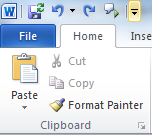
2. Now, to apply the same formatting to the second paragraph, you need to remember the exact formatting to the first paragraph. This is the point, where format painter comes to rescue. Using the Format Painter option, to copy all the formatting of first paragraph to second is done by selecting that first paragraph and then copy the formatting by clicking Home > Clipboard > Format Painter.
3. The format painter brush will then follow your cursor around, letting you know that it’s active. To apply the formatting, select the second paragraph.

Note : You can notice the cursor with the format painter brush is visible in the screenshot.
4. When you release the mouse, the formatting is applied to the second paragraph and the format painter tool is turned off again.

5. The format Painter would be activated till the formatting has been completely applied to another text.

Clicking on the format Painter would activate it only for one instance. i.e you can copy the same formatting to one piece of text. However, to apply that formatting to several more pieces of text, select that first line of formatted text again. This time, double click on the format painter button. Then you can keep applying your copied formatting by selecting more pieces of text. To turn off the format painter, press escape or click the format painter button again.
How do you cancel accidental effects of painter formatting?
accidental effects? Use Ctrl+Z to undo the last changes.
I used Ctrl+Z and it did not get me out of painter formatting?
I used Ctrl+Z and it did not get me out of painter formatting?