
PowerPoint 2010 comes equipped with a wide variety of themes that provides a way of applying a set of colors, fonts and effects to presentations to achieve stunning presentations.
To access and apply themes in Office 2010 follow the steps:
1. Navigate to Design tab > Themes.
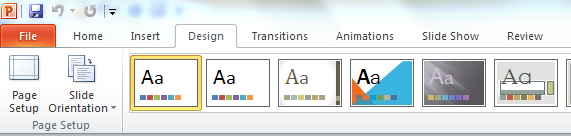
2. Click the dialogue box launcher to see the themes that come with PowerPoint 2010 by default.
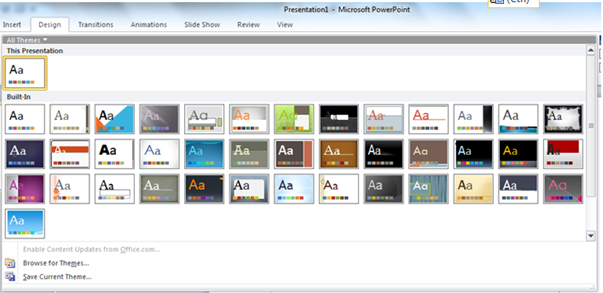
3. Hovering mouse over any thumbnail temporarily to preview the theme as a Live Preview so you can see how the presentation looks like once theme is applied.
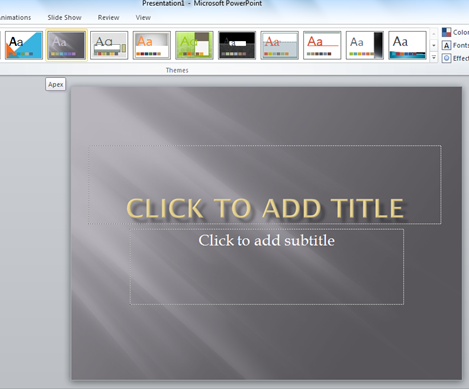
4. Click the theme Thumbnail, once theme is finalized after previewing how well it goes with you content of presentation.
5. While you have selected a theme you can always change properties for a theme like Colors, Fonts, and Effects & Background Styles.
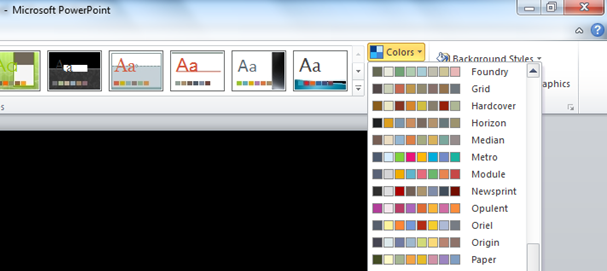
Change Color Theme from the number of available for the layout.
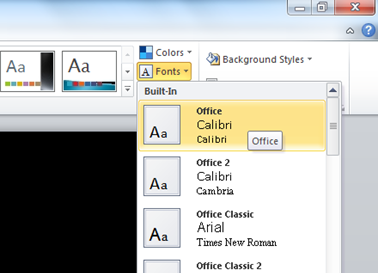
Change Fonts for the presentation.

There is a number of background styles that can be applied to the theme selected
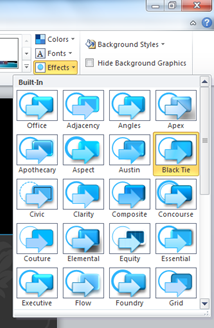
Even the effects for the Presentation theme can be configured.
There are 40 themes available and a number of customizations available for every theme, believing permutations & combinations we can have a wide number of unique Themes in PowerPoint 2010. And yes, you can download PowerPoint themes from the Internet as well!!
ur tips really fruitful & fascinating.i couldn’t find any words to congrats u!!
I have to say that for the last few of hours i have been hooked by the impressive articles on this website. Keep up the wonderful work.