
Adding Date & time to PowerPoint slides in your presentation, will make your presentations more informative for both speaker as well as audience when the presentation is delivered. There is a simple way to add date and time to PowerPoint slides. To Show Date and Time on a Slide in PowerPoint 2010 follow the steps:
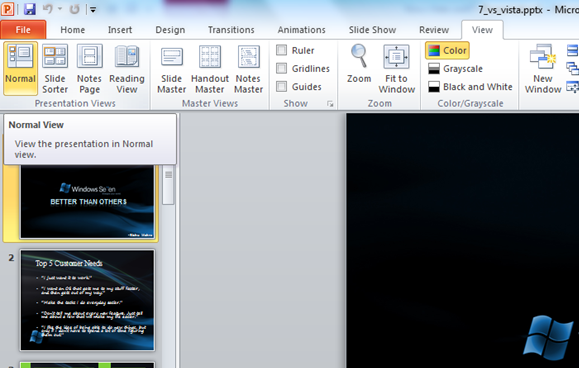
1. From the Ribbon, click View tab, and choose Normal Presentation view from Left Hand side Corner.
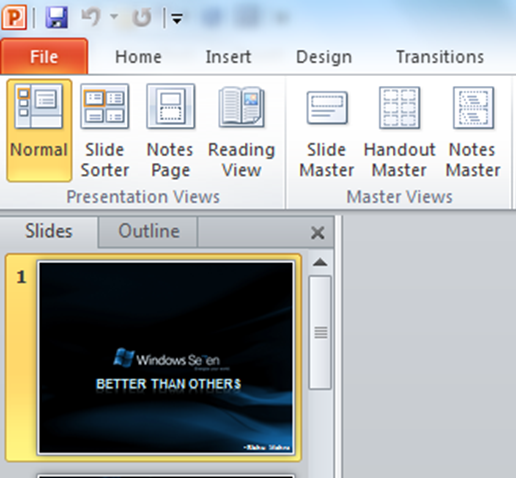
2. From the left side pane, click the Slides tab, and select the first slide below. Selected slide will be highlighted.
3. Then click the Insert tab and go to Text group section and click Date and Time icon.

4. This will launch another dialog box with two tabs Slide, Notes and Handouts. To add the date and time to your slides, click the Slide tab. To add the date and time to your notes pages, click the Notes and Handouts tab.
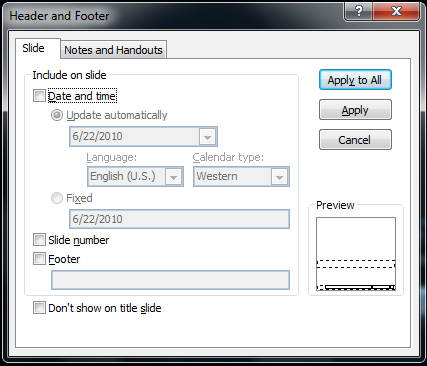
5. Select the Slide tab to add the date and time to your slides. Check Date and time box, and select Update automatically or Fixed options to include the date in slides. Update automatically would make the date dynamic, changing and updating automatically while fixed, sets a particular date to be displayed every time in the slides.
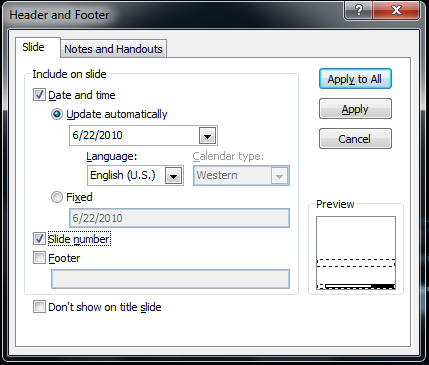
If you choose Update automatically, you can select the format of date and time from the drop down list.
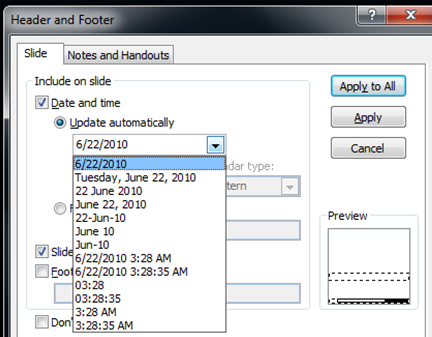
6. To add date and time to all the slides, click Apply to All button. Alternatively, to add date and time to only the current slide, click Apply.
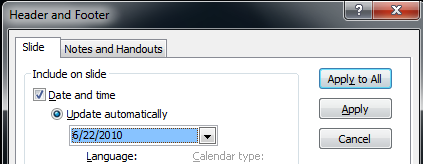
Now, the dates are set in the presentation and can be seen on slides in PowerPoint 2010.
Tip : By setting a fixed date on your presentation, you can easily keep track of the last time that you made changes to it.
Thanks for sharing such a nice detailed tutorial. I always looking for that one. All articles are fine and detailed. Keep it up!
Thanks a lot JK !! 🙂