
Microsoft PowerPoint 2010 includes a feature to instantly broadcast your PowerPoint 2010 presentations by sending out a URL so people can view your presentation on the Web. The presentation shared over the web can be seen even if the viewer does not have PowerPoint installed, all they would need a web browser like Internet Explorer, Firefox, or Chrome. The "Broadcast Slide Show" is the feature in PowerPoint 2010 delivers live presentations to audience over the Internet.
To broadcast a Presentation over web :
1. Open the Presentation
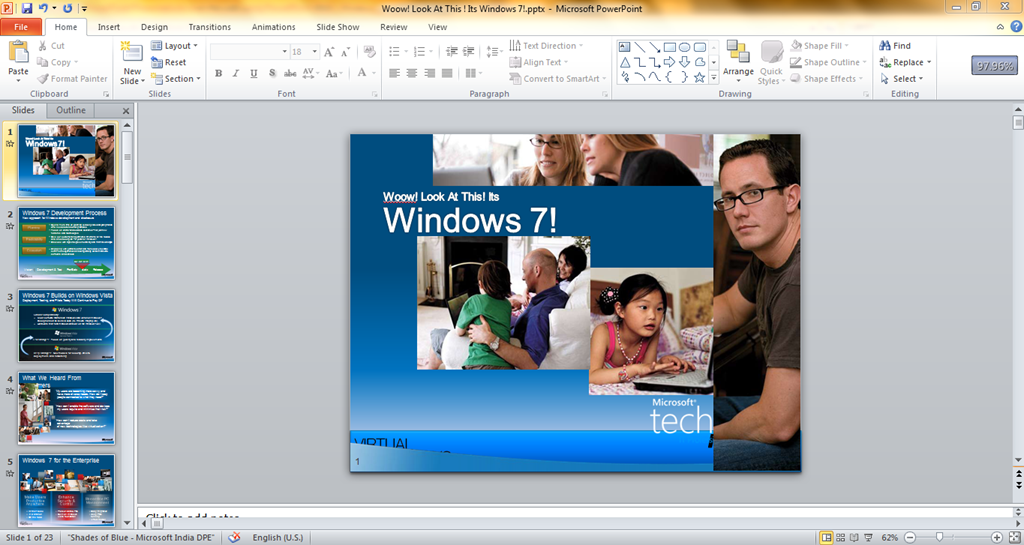
2. Navigate to "File" > "Save & Send " in the menu
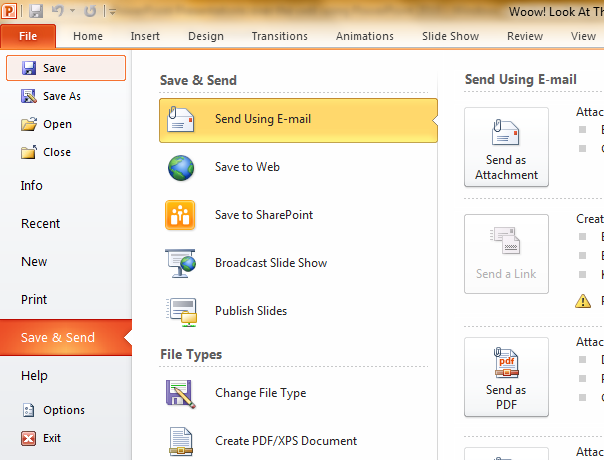
3. Select "Broadcast Slide show " from the Save & Send tab.
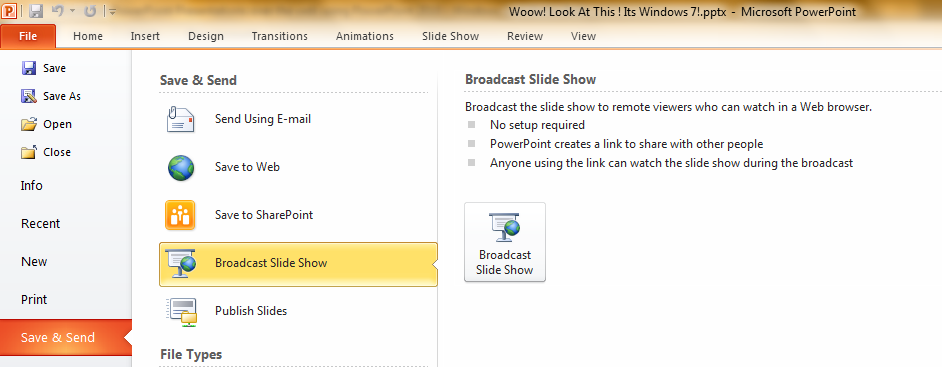
4. Click the Broadcast Slide show button in extreme right side.
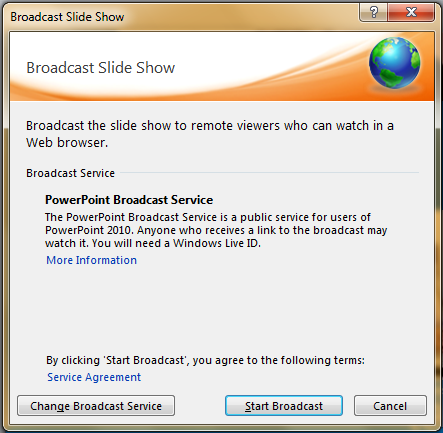
5. Click start broadcast button on the “Broadcast slide show” Window.
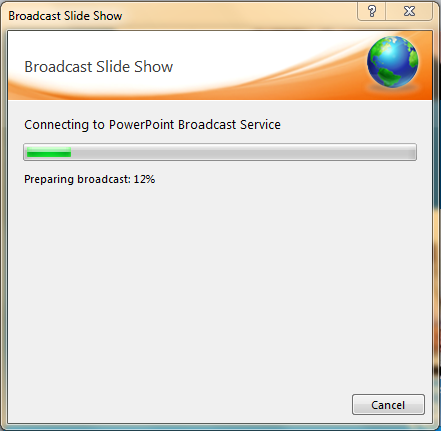
6. PowerPoint 2010 would connect to PowerPoint broadcast service & would prepare Broadcast of the presentation.
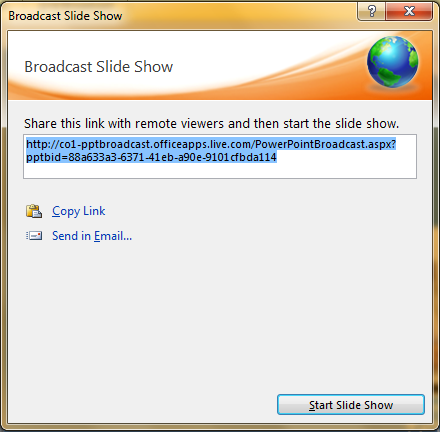
7. After the broadcast is prepared a Windows with presentation link would be created . You may distribute this link to all remote audience with whom you wish to share the presentation.
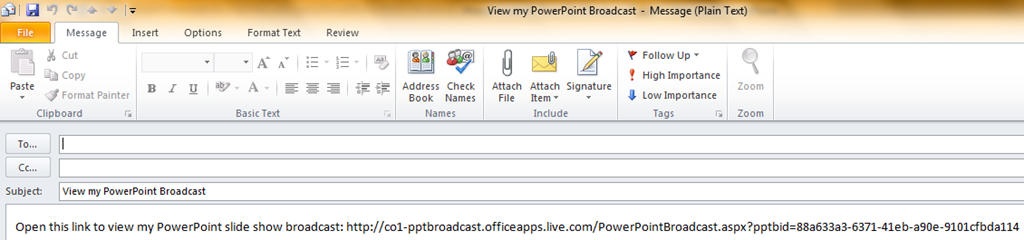
8. Clicking Send in email link would bring up Microsoft Outlook 2010 in ‘Compose mail’ mode with the Slide Show link included in the message.
9. Once you have started the broadcast of presentation , no changes can be made to it. An alert would be popped in PowerPoint to warn.

10. Click Start Slide Show button to start the presentation . Now play the presentation on your local computer in full screen mode and as you change slides locally, the same will happen on the screens of your remote audience.![image[36]](http://windowsvj.com/wpblog/wp-content/uploads/2010/06/image361.png "image[36]")
11. To end the broadcast use the end broadcast button in the ribbon or in the alert which warns “You are broadcasting this presentation & can not make changes”.
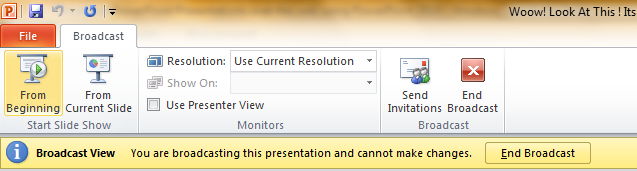
To view a PowerPoint broadcast, Remote Audience would require a browser like Internet Explorer, Firefox, Chrome or Safari. The Broadcast link given for the Slide Show is session based and so it exists only till your Slide Show lasts. Once you stop broadcasting the Slideshow by clicking on ‘End Broadcast’ icon on the Broadcast ribbon, a “Service Unavailable” message is shown. At any time during the presentation, you can send invitations for more people to join from the ‘Send Invitations’ icon in the Broadcast ribbon .